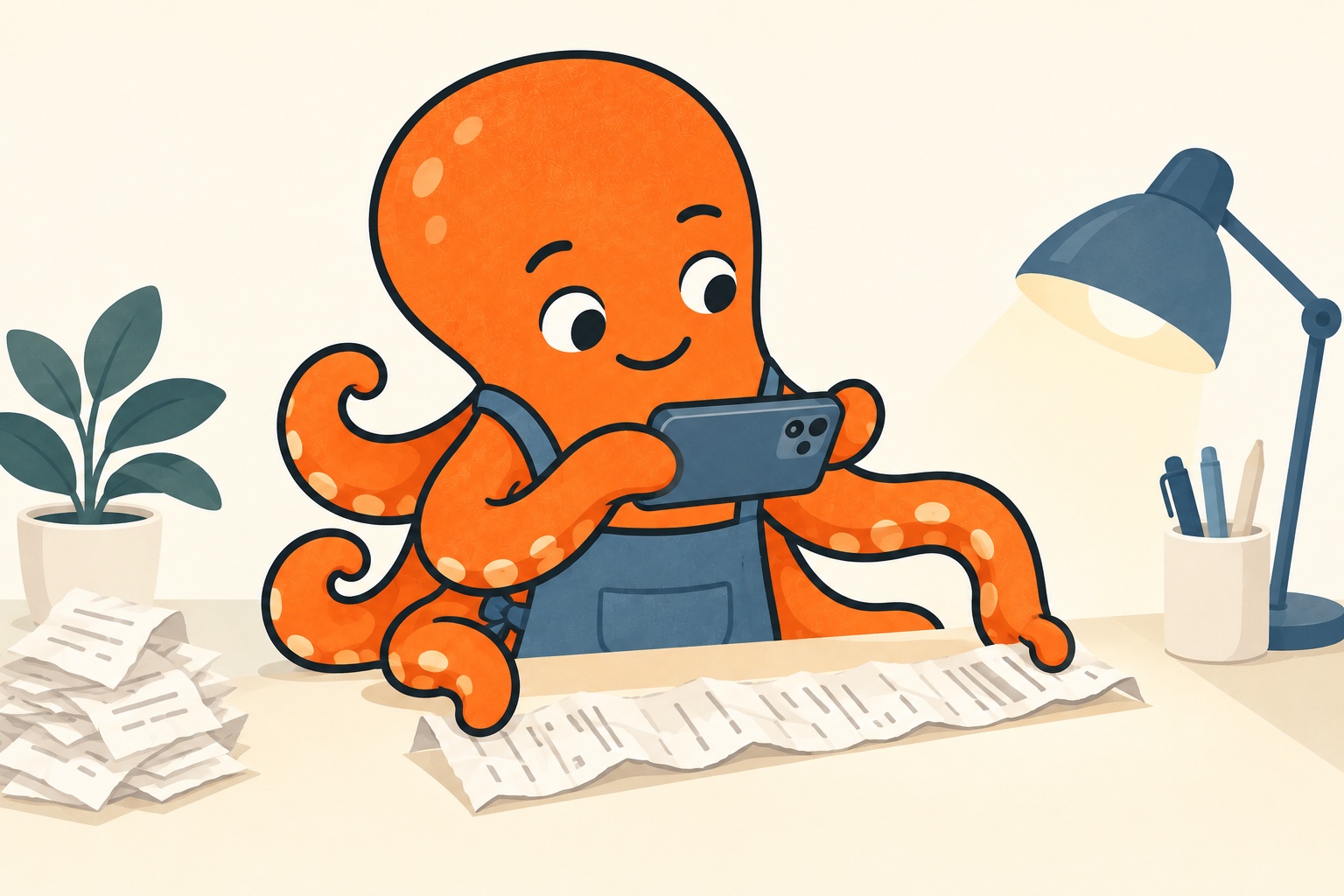
Give the document light and a plain background
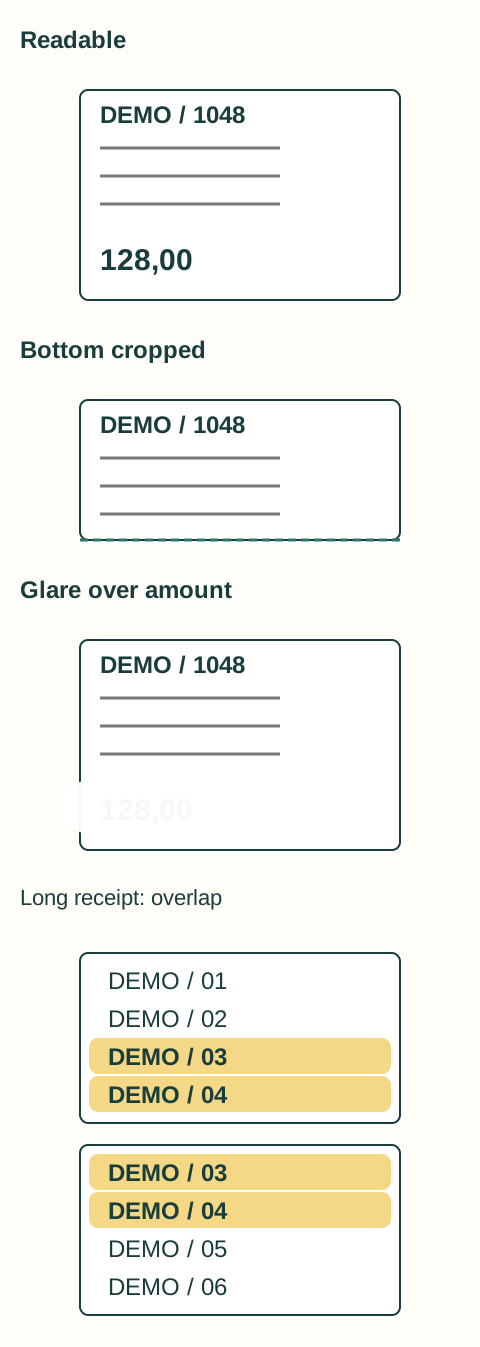
Lay the receipt as flat as possible on a contrasting surface. Even light without a harsh hand shadow or shiny reflection helps. Hold the phone roughly perpendicular above it so text at the far end does not become unnecessarily small.
Include the whole document, not just the amount. Seller name, date and other details can matter equally for later identification. Carefully flatten a crumpled receipt, but remember that a finger covering text can hide information just like a bad crop.
If your phone’s regular camera produces a readable image, it is enough. Always check the result of automatic enhancements: stronger contrast, for example, can erase faint print.
Check the photograph zoomed in
Do not rely on a small preview. Zoom into the top, a few middle lines and the bottom edge. If characters merge now, they will not improve by themselves before handover. Retake the image while you still can.
Ask simply: is the entire document shown, are the required details readable, and are they free of shadow or glare? Is the file merely an unreadable screenshot from another application? When sharing through chat, check whether quality was reduced; use original-file sending if necessary.
This quick check saves you from taking the photo again later. You still have the receipt in your hand now; a month from now, you may be searching pockets and compartments for it.
Photograph a long receipt so it can be pieced together
One distant shot of a long document may be too small. If you need multiple shots, retain their order and overlap some text between neighbouring images. The recipient can then see the connection without a gap in the middle.
Save images as parts of one purchase and label them, for example, “parking — part 1 of 2”. Do not treat multiple photographs as multiple documents. If creating a PDF, open it and check every part is present, correctly ordered and still readable after conversion.
For a document with several pages, check the remaining pages the same way. The first page may not reveal that part of the document is missing.
Add context the paper does not show
A parking ticket may show location and time without revealing which business trip it belonged to. A short note such as “client visit, Prague, 12 August” later connects the purchase to the right company or project. Record the true context, not your own tax conclusion.
If you travel for two activities on the same day, record the distinction immediately. Retrospective guessing from an amount and vague memory is much harder. The accountant then receives a readable document and information useful for their work.
Recognised text does not replace the original image
OCR can extract text from a photograph, but errors and loss of layout context are possible. Google's guidance on converting PDFs and photographs to text discusses orientation and image quality among other factors. If a recognised number does not match, open the original image; the document itself may not be wrong.
Keep a usable image of the document, not just automatically recognised text. Agree with your accountant how to hand over records and handle paper originals in your circumstances. Successfully taking a photo is not itself an instruction to throw away the original.
Source for this section: Google: Convert PDFs and photographs to text