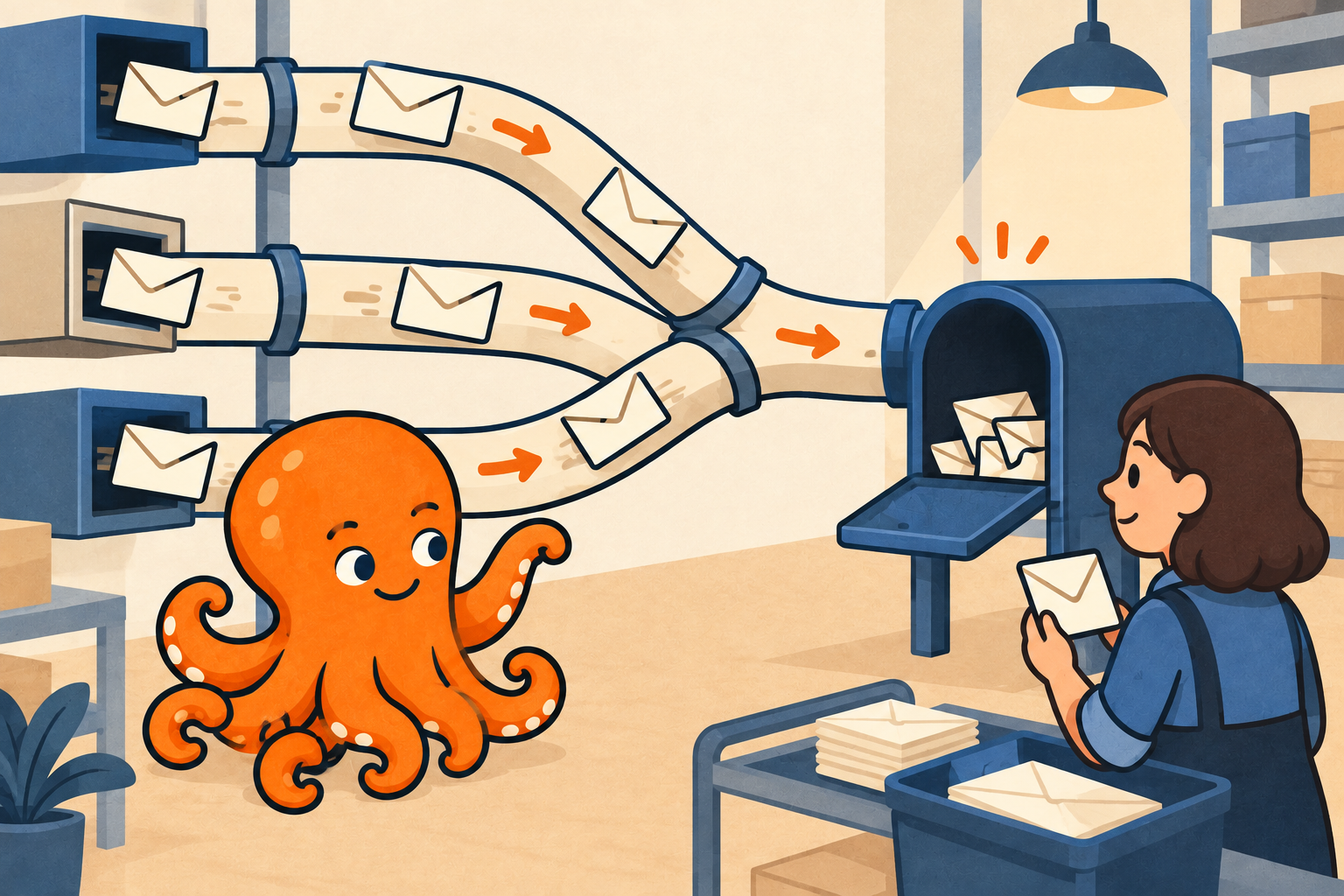
An invoice address does not tell you where the message is stored
Addresses such as invoices@, billing@ and documents@ do not necessarily mean three separate mailboxes. Some may simply be additional addresses for the same mailbox. When looking for an invoice, you need to establish two things: where the supplier sent it and where the message is actually stored.
The billing contact is the address held by the supplier. An alias is an additional email address that delivers to a mailbox according to your mail settings; it may not have its own login. The mailbox is where you sign in and open the message. A colleague with access to the supplier’s customer account checks the address held there; your company’s email administrator checks the alias configuration.
In this fictional example, a hosting supplier has billing@example.com on file. It is an alias for provoz@example.com. A colleague searches faktury@example.com because its name seems the most logical, but finds the invoice only in provoz@example.com. We will use this example to show what to record so you do not repeat the search. All addresses and details are illustrative.
Trace one known invoice
Start with an invoice someone on the team has already received. Note its number or billing period and the message date. The colleague with access to the supplier’s customer account checks the invoice delivery address. The login email may serve a different purpose; if the field is unclear, ask the supplier to confirm which address they sent this particular document to.
The colleague who found the invoice opens the supplier’s original email and displays the recipient details. Record that address along with the mailbox and folder containing the message. A copy manually forwarded by a colleague is not enough for this check: you need the original message.
The recipient field helps you compare addresses, but does not reveal the entire delivery route on its own. If the details conflict or it is unclear why the message reached that mailbox, ask the email administrator to investigate the specific message. Have them confirm where the alias delivers and whether forwarding is involved.
In Gmail, compare the recipient with the delivery address
To find the known message in Gmail, start with “in:anywhere from:uctovani@example.net”. This finds messages from that sender, including Spam and Trash. Replace the fictional address with the supplier’s real address.
You can narrow the query by adding “to:billing@example.com” to search by recipient. Alternatively, use “deliveredto:billing@example.com” to search by delivery address. Again, replace the example address with your own. Google’s help page in the sources explains the operators.
Open the individual message in the conversation you find: not every message in that conversation necessarily matches your query. An empty result does not establish that the supplier sent nothing. Search helps you find evidence; check the alias settings with your email administrator.
With another provider, use its own search to look by sender, recipient or period, then open the message details. These operators are specific to Gmail.
Source for this section: Google: refine searches in Gmail
Record the verified route, not just a list of addresses
Once you have found the message and verified delivery, save a short shared record. A colleague should be able to see which mailbox to open, which document you used to check the route and whom to contact if something does not match. Passwords and invoice contents do not belong in this table.
The table records the situation before any change in our fictional hosting example. Check and record each additional supplier’s own details.
| What to record | Illustrative entry |
|---|---|
| Supplier and service | Example hosting — company website |
| Invoice delivery address held by the supplier | billing@example.com |
| Recipient in the specific original message | billing@example.com |
| Actual receiving mailbox and folder | provoz@example.com — Inbox |
| Evidence and check date | September invoice; message dated 30 September 2026; checked 2 October 2026 |
| Alias configuration confirmation | Email administrator confirmed delivery from billing@example.com to provoz@example.com |
| Who handles discrepancies | Colleague managing the hosting account; email administrator checks mail settings |
Check alias delivery and supplier sending separately
Save the current settings before changing the alias or the address held by the supplier. Agree who will make the change and who will check delivery. Change one thing at a time: changing the billing contact, alias and forwarding together makes faults harder to trace. Keep monitoring the original mailbox while you verify the change.
Test delivery to the alias with a message from a colleague using a distinctive subject. The colleague who receives it confirms the mailbox and folder where it arrived. This tests delivery to the alias, but not yet the address the supplier uses.
To verify the whole route, arrange for the supplier to resend a known invoice or send a test message from their billing system. Specify the exact address and ask them to confirm it is stored for invoice delivery. The following template explicitly requests a copy of an existing document, rather than a newly issued invoice.
Use the result to fix the specific point
If your colleague’s test arrives correctly but the supplier has a different address on file, ask them to correct their billing contact. If the supplier uses the expected address but the message reaches another mailbox, check the alias or forwarding with your email administrator. If you cannot find the message at all, record “delivery not verified” and give the supplier or administrator the address and sending time so they can trace it.
Record a message arriving in the correct mailbox’s Spam folder separately: the billing contact may not need changing. For Gmail, our article on invoices in Spam explains the next steps.
After the test, add the result to the record and check the next regular invoice too. You can then tell colleagues: “This supplier sends to this address, and we found the document in this mailbox.” That gives you a basis for correcting the relevant setting and choosing the mailbox for document collection.